
Account setup
Lost your Binance authenticator or changed phones? Change it yourself or request a 2FA reset
If any verification method still works, you can swap the authenticator in Security settings without a review. Only when every method is gone do you need the reset flow, which can take up to 24 hours and may ask for an ID video. Both paths pause withdrawals for up to 48 hours.
If your phone broke, was stolen, or you moved to a new one without transferring your authenticator app, Binance has two separate ways back in. Which one you use depends on whether any of your other verification methods still work. If at least one does, you can change the authenticator yourself from your account settings. If none do, you have to request a 2FA reset, which may involve a video review.
Check what still works before you start
Go through everything you might have: the old phone, a tablet, a backup authenticator app, and the 16-digit setup key if you wrote it down when you first enabled the authenticator. Also check whether your email and phone number on the account can still receive codes.
- If any one of these still produces a code, you can change the authenticator yourself. No ID documents, no review queue.
- If none of them work, you need the reset flow. Binance may ask for a video of you holding your ID, and the review can take up to 24 hours and can be denied.
One method still works: change the authenticator yourself
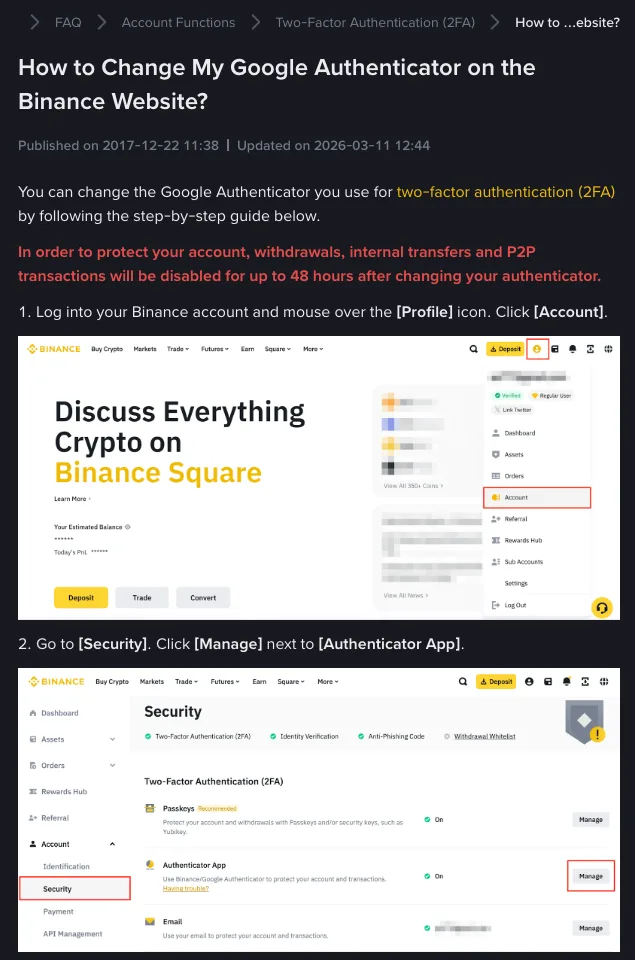
Binance's guide "How to Change My Google Authenticator on the Binance Website?" lists these steps:
- Log into your Binance account, hover over the [Profile] icon and click [Account].
- Go to [Security] and click [Manage] next to [Authenticator App].
- Click the edit icon next to the authenticator you want to replace.
- Read the notes and click [Continue].
- Complete 2FA with a method you still have.
- Scan the QR code with your authenticator app on the new phone, or type in the 16-digit code shown on screen. Finish this before you click [Next].
- Enter the 6-digit code from the new app and click [Submit].
Save the 16-digit code from step 6 somewhere other than the phone itself, such as a password manager or a note kept offline. A screenshot in the same phone's photo gallery disappears along with the phone.
Changing the authenticator has a cost too. The page states that withdrawals, internal transfers and P2P transactions will be disabled for up to 48 hours afterwards. If you need to move funds soon, plan around that window before you start.
Nothing works: request a 2FA reset from the login page
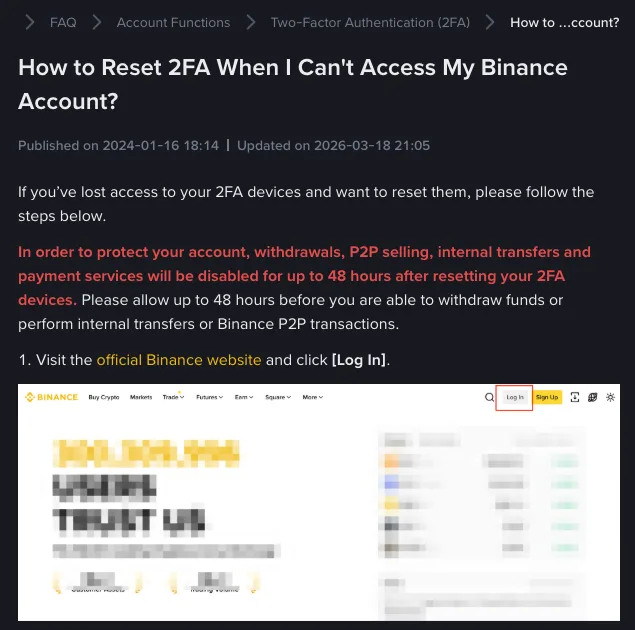
The reset starts from the normal login screen, following "How to Reset 2FA When I Can't Access My Binance Account?":
- Open the official Binance website and click [Log In].
- Enter your email or phone number and click [Next].
- If a passkey prompt appears, click [Cancel], then choose [My Passkeys Are Not Available]. Skip this step if no prompt appears.
- Enter your password and click [Next]. If you have also forgotten the password, use [Forgot password?]. Binance says that if you cannot reset the password because no 2FA method is available, you should contact Customer Support.
- On the Security Verification Requirements page, select the method you can no longer use (for example [Email]), then click [Security verification unavailable?] in the pop-up.
- On the Reset Security Verification page, tick every 2FA device you have lost access to and click [Confirm Reset].
- Read the warning in the pop-up and click [Confirm].
- Complete verification with any 2FA methods you still have.
- If asked, enter a new phone number or email address, click [Get Code], then [Submit].
In step 6, tick all the devices you can't reach. Leaving one unticked means that method can still block you later.
After you submit, the request shows one of these states:
- Under Review: a team is checking it, which can take up to 24 hours. The result goes to the new email address you verified, and you can also check it again through the [Security verification unavailable?] link.
- Application Denied: Binance asks you to recheck which 2FA devices you can actually use and try again.
Preparing the verification video
Binance's page "How to Record a Video for My Reset 2FA Request" says a video may be needed. Have these ready before you record:
- The same ID document you used for identity verification on Binance (ID card, passport or driver's license).
- Good lighting, a quiet room and a working microphone.
In the video, hold the front of the ID towards the camera with your face clearly visible, and read this statement, filling in the date, the 2FA method and your account email:
"Today is DD-MM-YYYY, I'm applying to reset the Google/SMS/Email/Passkey security verification (2FA) for my account. I confirm that it is my own activity, and I am contacting Binance customer service to reset Google/SMS/Email/Passkey security verification for my Binance account [email protected]."
If you don't speak English, you can say it in your own language, but you also need to write the full statement on paper, with the correct date, email address and 2FA method, and hold it up to the camera along with your ID.
Submit the unedited video, without watermarks, together with a photo of the ID shown in it. You can send it through the reset 2FA appeal link or Customer Service live chat. The appeal link only works after you have already tried the reset flow above yourself.
Some users are also asked for the account registration date and the IP address used at registration. Binance says both appear in the subject line of your original registration email, "[Binance] Confirm your Registration From XXX (IP address) - XXX (date)", so search your inbox for it instead of guessing.
The 48 hours after a reset
According to the reset page, once a reset is approved, withdrawals, P2P selling, internal transfers and payment services stay disabled for up to 48 hours. You can log in, but money can't leave the account during that window. If you plan to withdraw once the restriction lifts, use the time to go through what to check on the receiving side before a Binance withdrawal, so you don't pick the wrong network right after getting the account back.
Fake support during account recovery
People locked out of their accounts are a target for impersonators. Keep these rules:
- Start the reset only from the Binance website or the official app. Ignore sponsored search results and "support links" posted in groups or social media.
- Upload the video and ID photo only through Binance's own reset or chat flow. Anyone asking you to send them by messaging app is not Binance; that video plus your ID is exactly what someone would need to request a reset in your name.
- Nobody legitimate needs you to read out a 6-digit code.
- If someone contacts you claiming to be Binance support, look up their email, phone number or account on Binance Verify.
For more on spotting impersonation, see how to tell whether a Binance email or message is real. nelunor is an independent site and can't look up, speed up or handle any account request.
Once you're back in
Three things make the next lost phone much easier:
- Add a second 2FA method, so a single lost device lets you change the authenticator yourself instead of going through a reset.
- Store the 16-digit authenticator key somewhere other than your phone.
- Set an anti-phishing code so you can tell real Binance emails apart from fakes.
If your authenticator still works but codes keep failing, or SMS and email codes never arrive, you don't need a reset. Go through the fixes for Binance verification codes that don't arrive or show as invalid first.
Binance help pages used for this guide (checked 20 October 2026): How to Reset 2FA When I Can't Access My Binance Account?, How to Change My Google Authenticator on the Binance Website?, How to Record a Video for My Reset 2FA Request.